
Backup Scheduler for Time Machine
Backups on your schedule. Never while you work.
Backup Scheduler tells Time Machine when to back up your Mac: every few hours, at set times, or when you step away. It shows every backup as it happens and tells you when one fails or a disk falls behind.

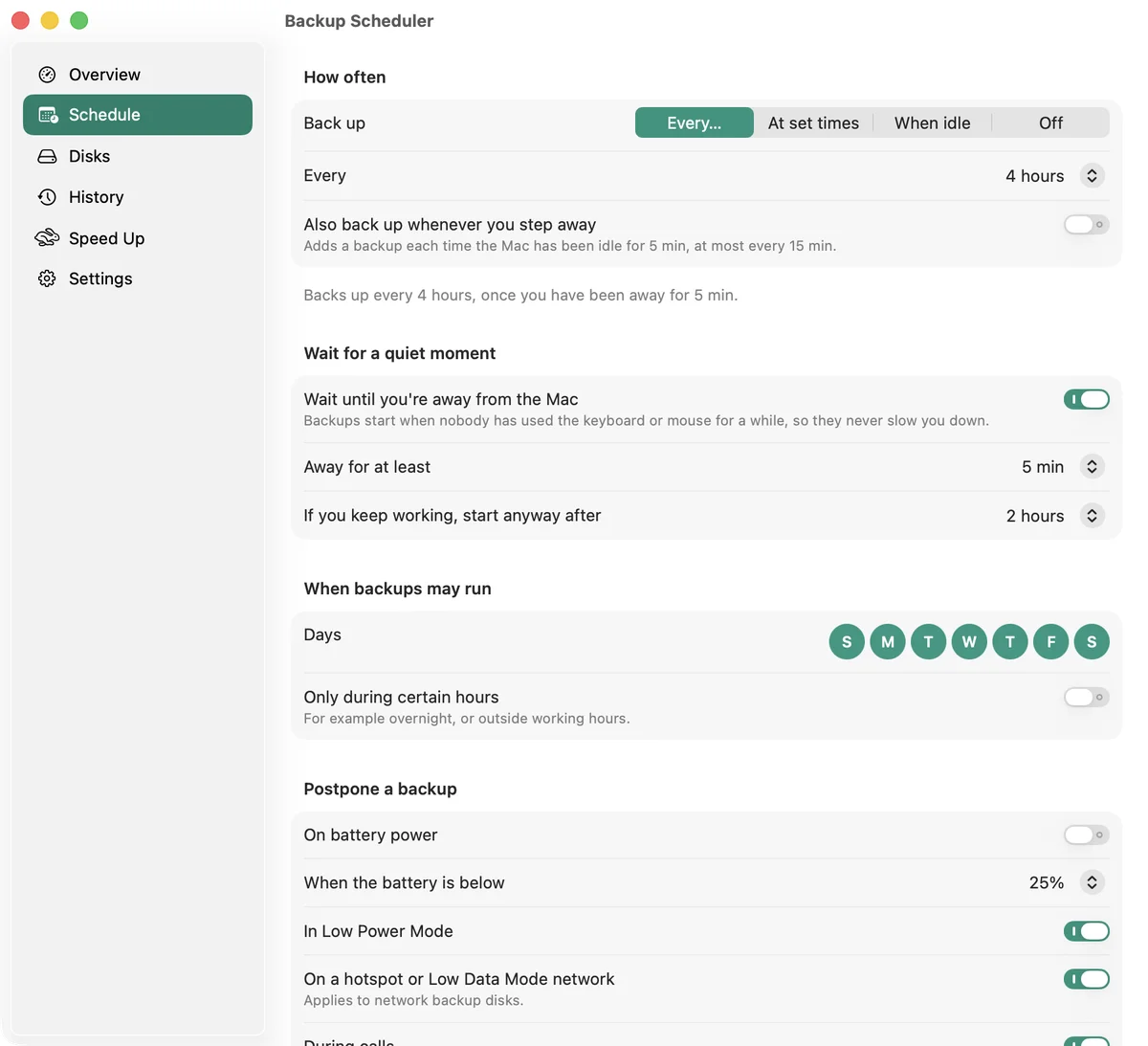
Any schedule, never in your way
Every 10 minutes to once a week, at set times on the days you choose, or whenever you step away. Backups wait until you take a break, hold off on battery, during calls or on a hotspot, and catch up after sleep.
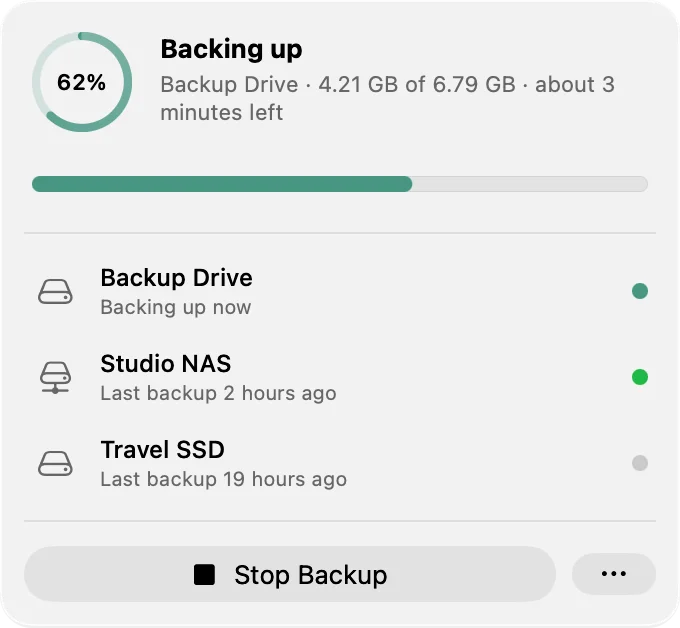
Always know it worked
Live progress in the menu bar, with the time left. An alert when a backup fails or a disk hasn’t been backed up for days.
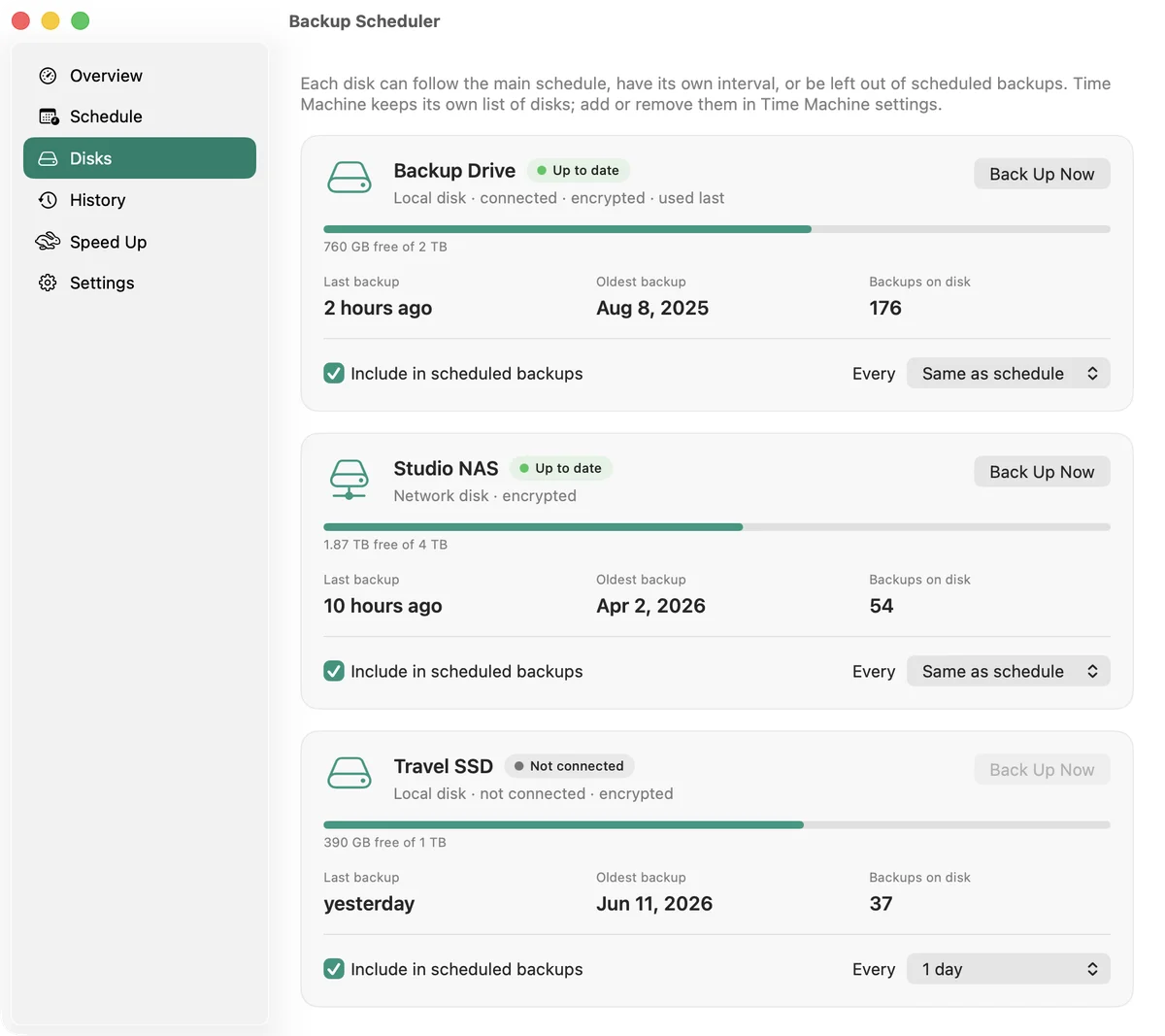
Every disk at a glance
Free space, the last and the oldest backup for each disk. Give a disk its own schedule, leave it out, or back up as soon as it’s plugged in.
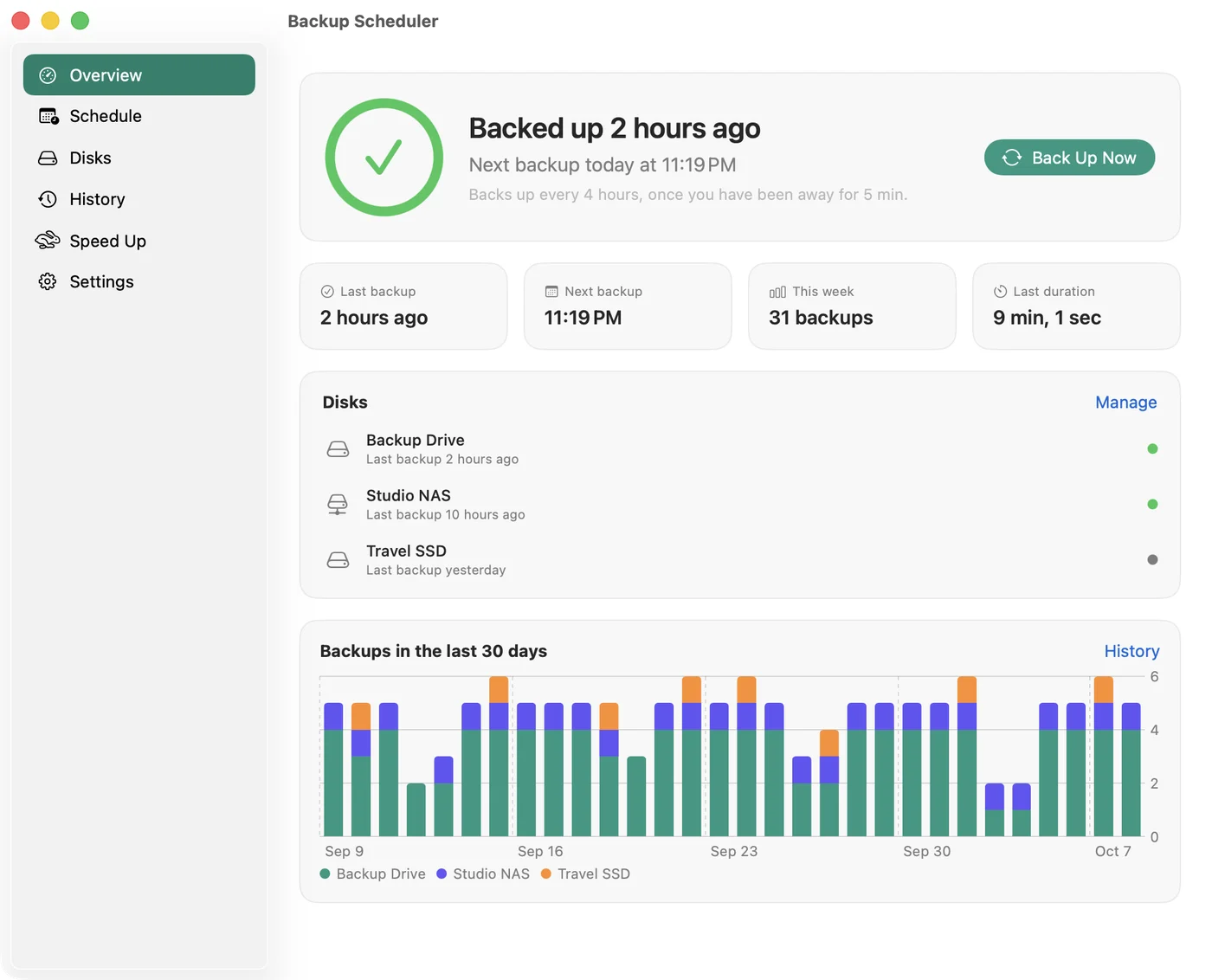
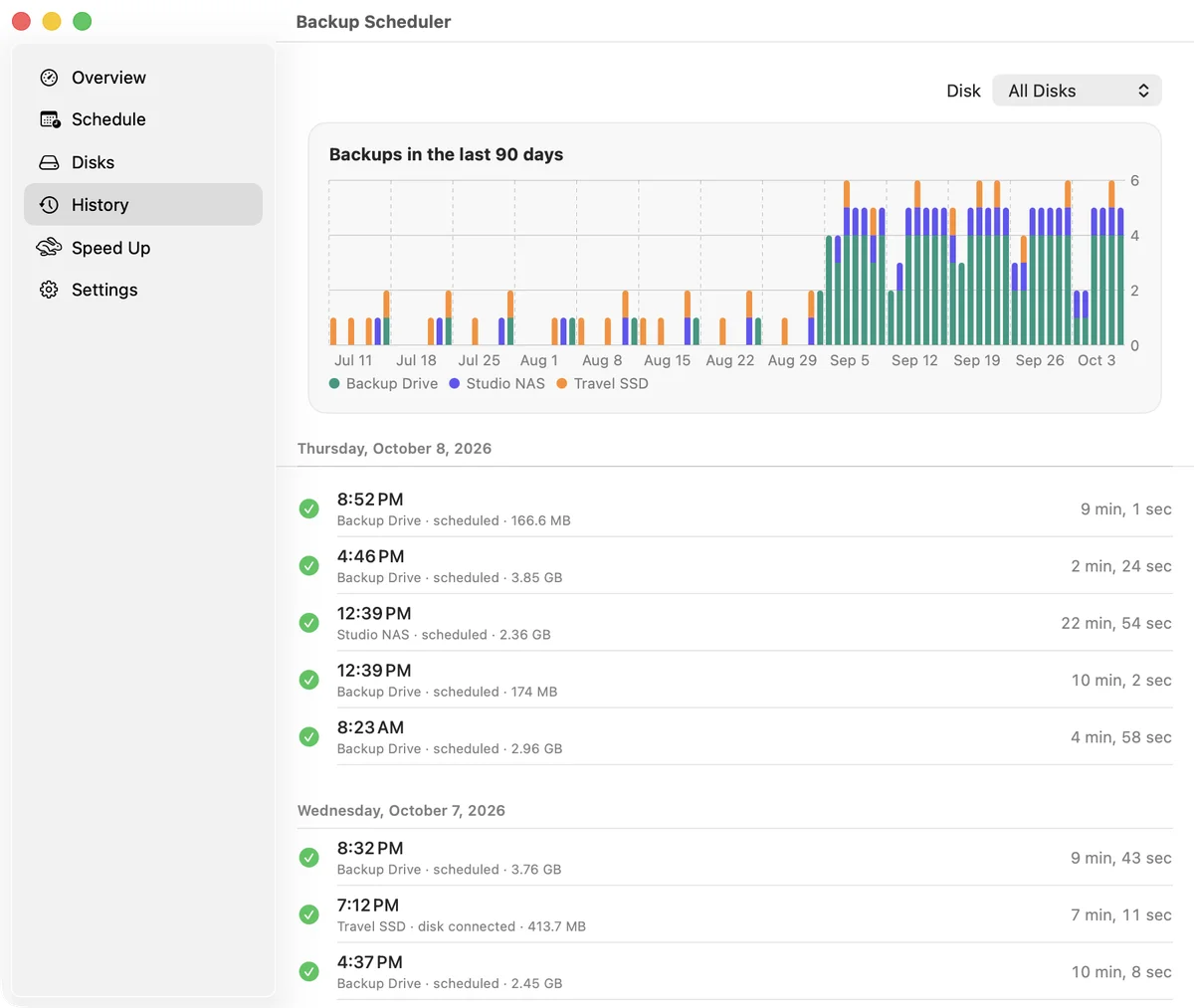
Every backup on record
Every backup on every disk, how long it took, and a chart of the last 90 days.
Faster backups
Skip caches, Downloads, Xcode files, simulators, Docker and virtual machines with one click, so each backup copies less.
And also
- Pause backups for an hour, until tomorrow or until you resume.
- Shortcuts actions to start, stop and pause backups, or to get the date of the last one.
- A warning when Time Machine also runs its own schedule, and for Time Capsule disks that macOS 27 can’t use.
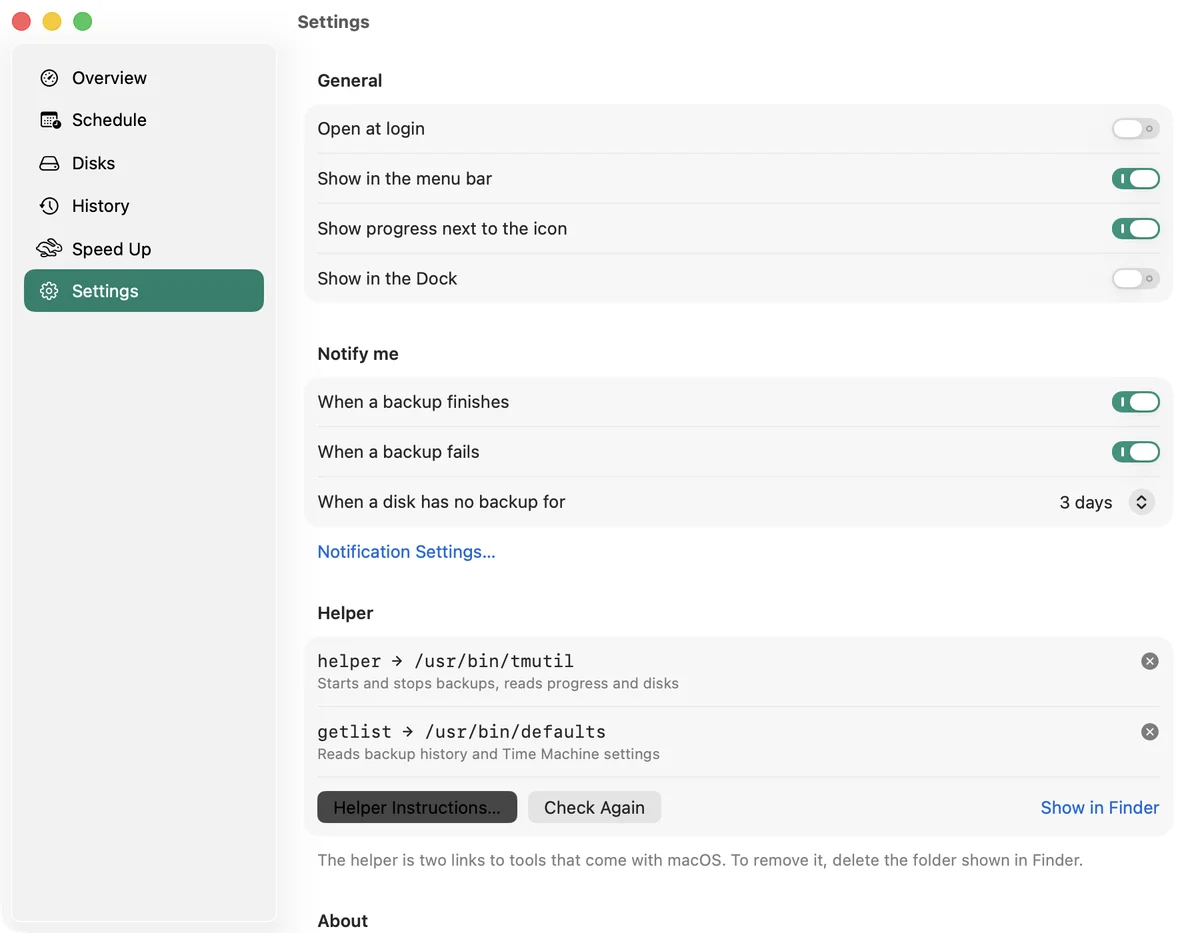
- Opens at login and lives in the menu bar. The Dock icon is up to you.
- In 20 languages. No account and no tracking: nothing leaves your Mac.
The free helper
App Store apps can’t start Time Machine on their own, so starting backups needs a free helper from our website. It takes about a minute. Without it, Backup Scheduler reminds you when a backup is due and you start it from the Time Machine menu.
One setting to change
In Time Machine settings, set Backup Frequency to Manually. Then only your schedule decides when backups run. Backup Scheduler tells you if Time Machine is still set to back up on its own.
Questions
Does it back up while my Mac sleeps?
Backups start while you’re logged in and the Mac is awake. A backup that was due during sleep runs soon after the Mac wakes. To back up overnight, keep the Mac awake.
Does it replace Time Machine?
No. Time Machine still makes the backups, to the disks you chose in Time Machine settings. Backup Scheduler decides when, and keeps an eye on every backup.
I used an older version. Do my settings carry over?
Yes. Your interval, idle time and allowed hours carry over, and the helper you already installed keeps working.
Requires macOS 14 Sonoma or later.
Questions or ideas? Email us at info@vorosinnovation.com.